

- Charts' live terminal view rebuilt with the new design
- On iPhone, Charts moved from the main tab bar into the "More" menu
- A full-screen chat assistant now opens directly from Charts, with a clear close button
Charts' live terminal view has been rebuilt with the new design, and on iPhone specifically it has moved from the main tab bar into the "More" menu, to make room for the pages people use most often on a small screen. From Charts you can also open the chat assistant in a new full-screen view, with a clear close button so you're never stuck in it.
What changed
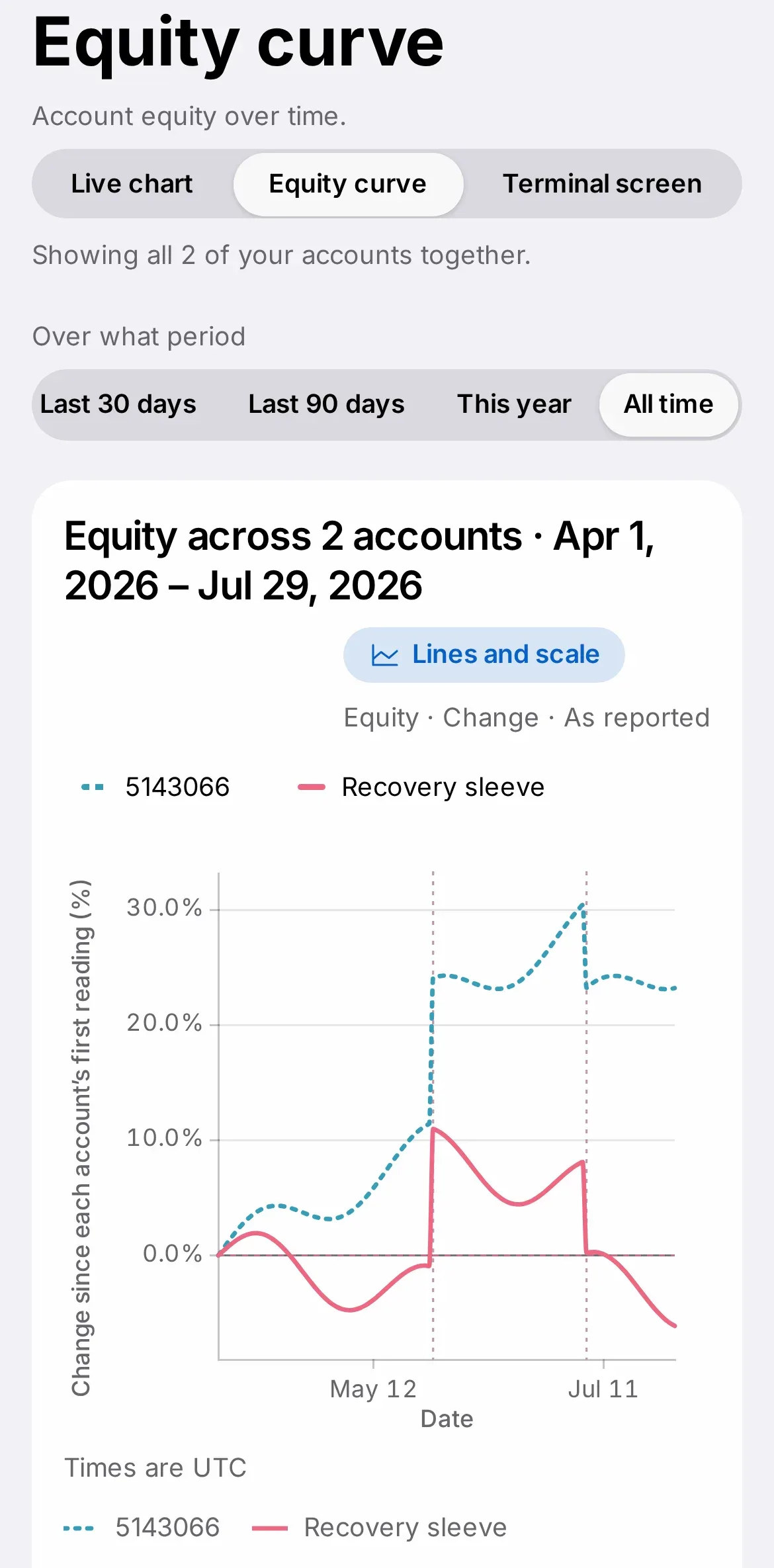
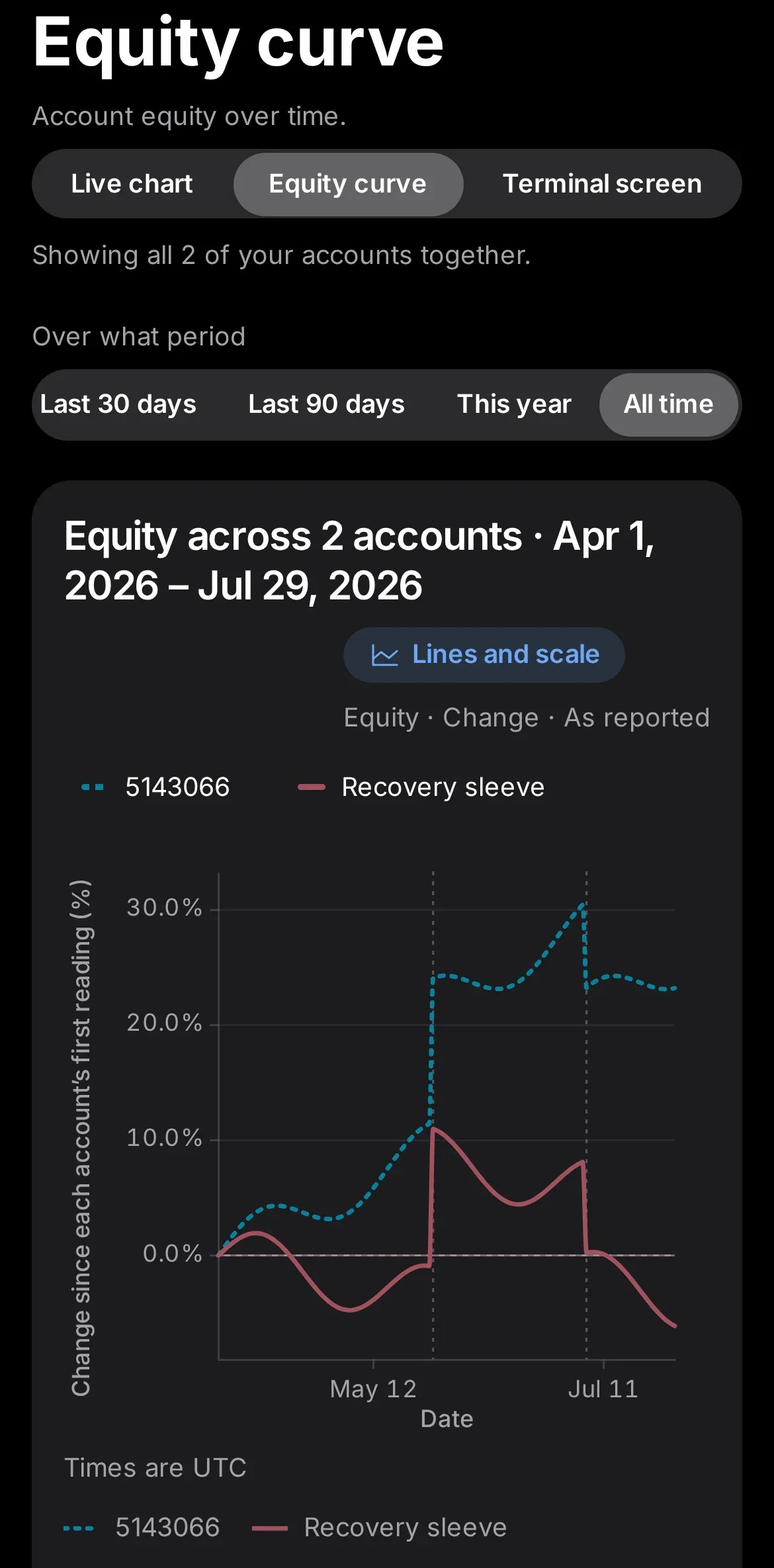
The terminal view itself has been rebuilt with the shared components used across the redesign. On iPhone, Charts now sits under "More" rather than the main tab bar; on iPad and Mac its location is unchanged. The chat assistant can now open full screen directly from Charts.




Why it matters
On a phone screen, tab bar space is limited, and a small screen can only hold so many tabs. Moving Charts under "More" keeps Overview and Trades within one tap, while keeping Charts reachable.
What you need to do
On iPhone, find Charts under the "More" tab instead of the main tab bar. On larger screens (iPad, Mac), nothing about its location has changed.
In detail
- On iPhone, Charts moved from the main tab bar into the "More" menu to make room for more frequently used pages.
- On Mac and iPad, Charts keeps its place in the main navigation, unchanged.
- The full-screen chat assistant opens directly from Charts and always has a clear close button.
- The assistant uses the Iris Ring avatar, with a green light for normal status and an orange light if it needs your attention.
One more thing
Moving Charts under "More" on iPhone was a trade-off about limited tab-bar space: Overview and Trades keep their place in the main tab bar.
The full-screen assistant is designed to feel like a proper conversation rather than a cramped pop-up, which is part of why it takes over the whole screen instead of appearing as a small floating window.