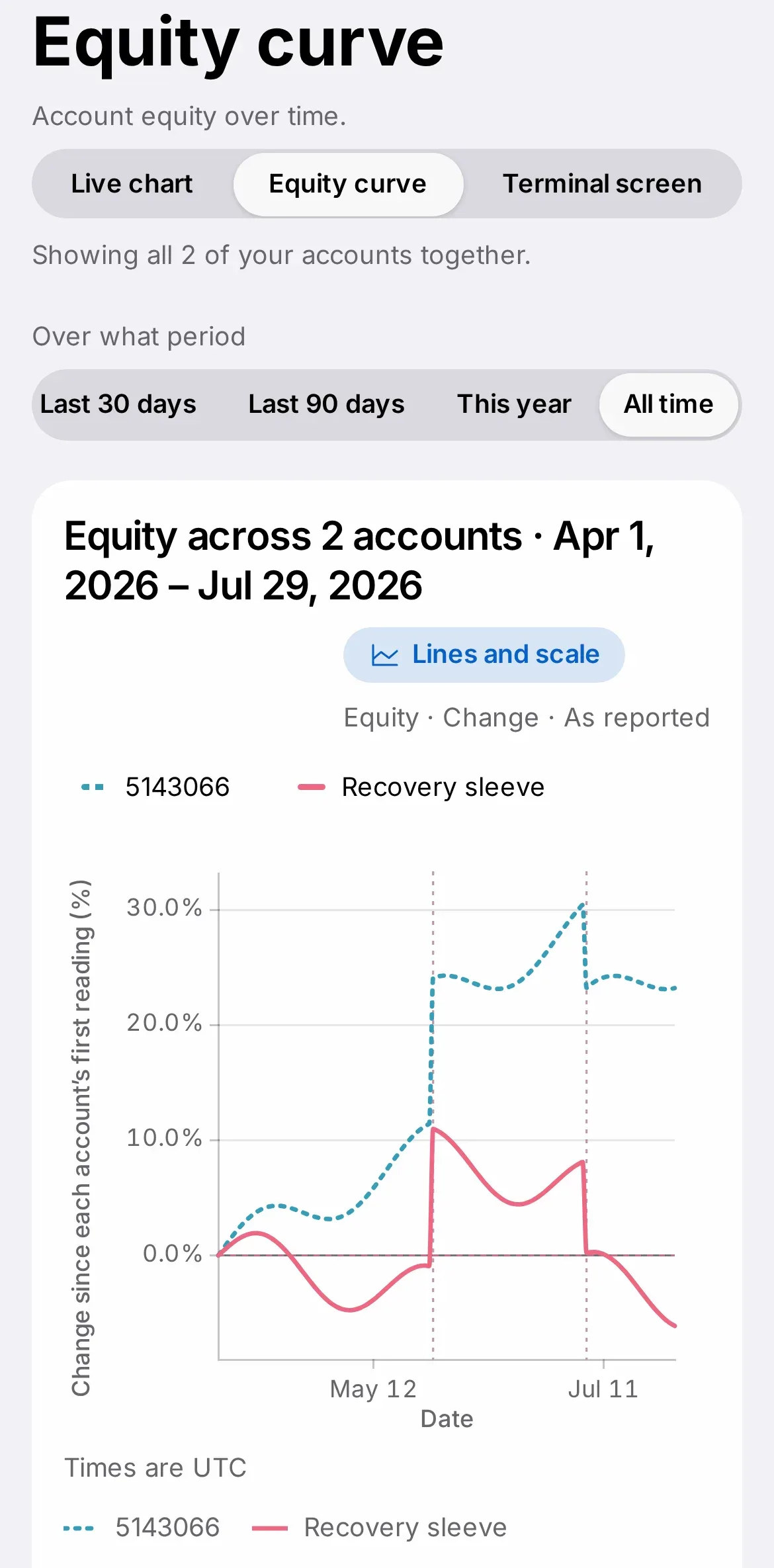
- A chat launcher on Charts opens the assistant in full screen
- Its avatar, the Iris Ring, shows green normally, orange when it needs you
- A clear close button always returns you to Charts
From the Charts page, a chat launcher opens the assistant in a full-screen view, with the Iris Ring as its avatar, showing a calm green light when things are running normally. This is a quick guide to opening it, and getting back out again.
Opening and closing it
- Open Charts (on iPhone, find it under the "More" tab).
- Look for the chat launcher to open the assistant full screen.
- Use the clear close button at any time to return directly to Charts.




What you need to do
On iPhone, remember that Charts itself now lives under the "More" tab rather than the main tab bar, so look there first if you can't find it.
In detail
- Open Charts, then look for the chat launcher to bring up the assistant in a full-screen view.
- The assistant's avatar, the Iris Ring, shows a green light for normal status and an orange light if something needs your attention.
- A clear close button returns you to Charts at any time.
Getting the most from it
The assistant is best suited to quick, specific questions about what you're seeing on the chart in front of you; for anything about your account, billing or a wider issue, the regular Support page is the better place to start.
If an answer matters, copy what you need before you close the panel. You can reopen the assistant as many times as you like in a session; closing it does not sign you out or affect anything else open elsewhere in the dashboard.