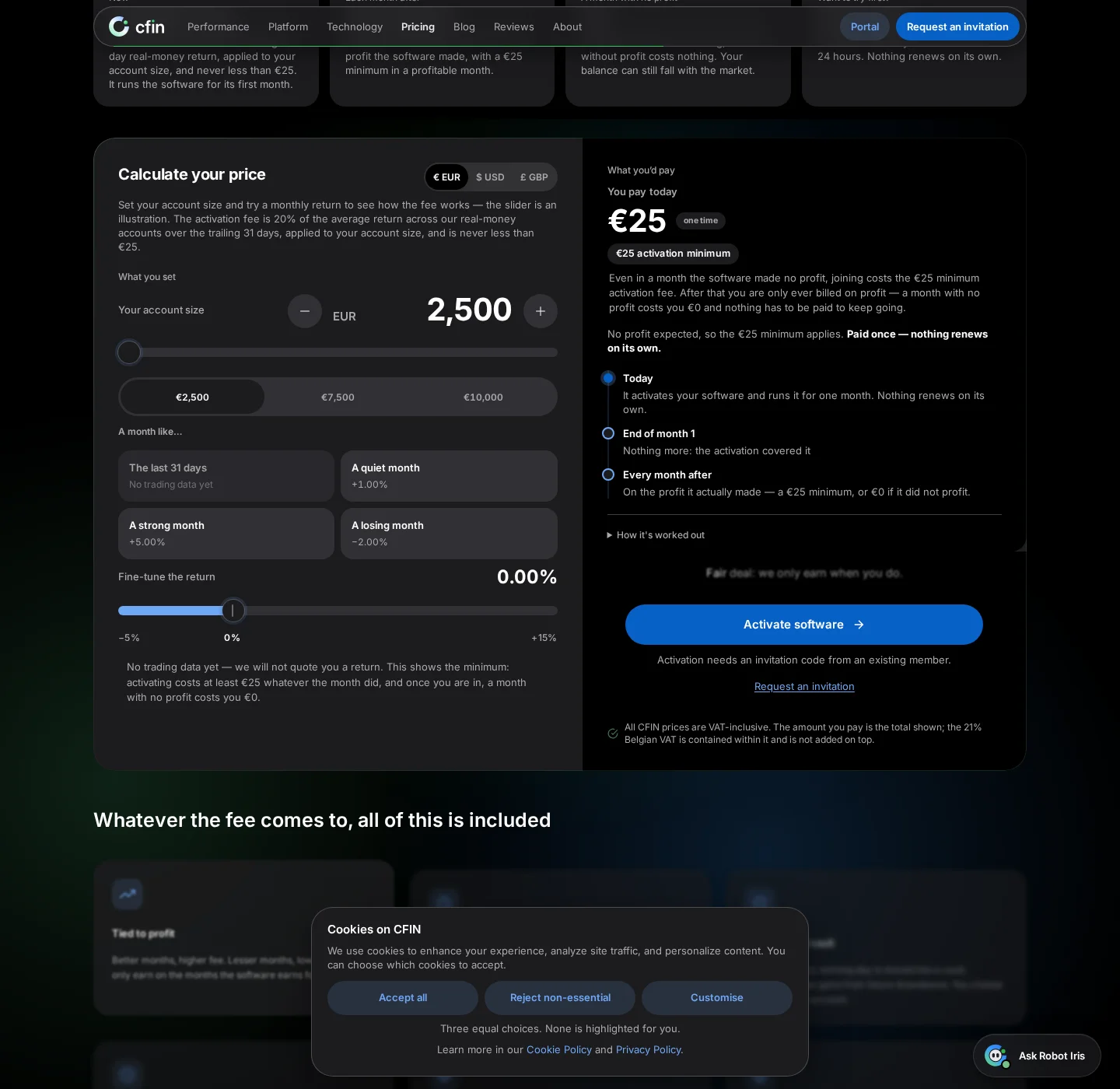
- Account size: type, drag, use steppers, or tap a €2,500 / €7,500 / €10,000 preset
- Four scenario cards jump the return slider to a fixed starting value, then you fine-tune from there
- A currency switch (EUR/USD/GBP) changes the units shown only, not how the fee itself is worked out
The redesigned fee calculator is built from two input controls that work together: an account-size control on top, and a return control underneath it, made of four scenario cards plus a slider to fine-tune from there. Here is what each one actually does.




The account-size control
Your account size can be set four different ways that all drive the same underlying value: typing directly into the field, dragging the slider, tapping the plus or minus stepper beside the figure, or selecting one of three presets — €2,500, €7,500 or €10,000. €2,500 is both the first preset and the floor the slider will not go below, so the control can never advertise a size it will not actually let you reach.
The scenario cards
“A month like…” presents four cards above the return slider: The last 31 days, A quiet month (+1.00%), A strong month (+5.00%) and A losing month (−2.00%). Selecting one moves the slider to that exact value — they are a starting point, not a separate input of their own. From there, the “Fine-tune the return” slider underneath lets you nudge the figure anywhere between −5% and +15%. These are examples you choose, not a forecast: the calculator only shows how the fee would work out for the month you pick, and says nothing about what the software will actually make.
How the fee is worked out
The calculator applies one rule. The licence fee is 20% of the month's profit, with a minimum of €25. A month with no profit costs the €25 activation fee if you are activating, and nothing if you are an existing member continuing. In code, simplified:
def licence_fee(profit, is_new_activation, rate=0.20, minimum=25.00):
    """All amounts are VAT-inclusive."""
    if profit > 0:
        return max(rate * profit, minimum)
    return minimum if is_new_activation else 0.0
Worked examples on a €10,000 account, using the same scenario cards as the calculator. They are examples you choose, not forecasts:
| Scenario | Profit that month | 20% of profit | Fee |
|---|---|---|---|
| A quiet month (+1.00%) | €100 | €20 | €25 (the minimum applies) |
| A strong month (+5.00%) | €500 | €100 | €100 |
| A losing month (−2.00%) | none | none | €25 on activation, €0 for an existing member |
Every figure is VAT-inclusive: the total shown already contains the Belgian VAT, currently 21%. A €100 total, for example, is €82.64 net plus €17.36 VAT, so nothing is added on top. A referral discount is taken off before the minimum is applied, and the charge never falls below €25. Past performance is not a reliable indicator of future results, and the scenarios above say nothing about what any account will make.
Why a radio group, not independent toggles
The four scenario cards behave as a radio group rather than four buttons you can press independently: picking one deselects whichever was picked before, because only one can be the slider's current position at a time. Arrow keys move between them and select as you go, the same way a native set of radio inputs works, which matters for anyone navigating the calculator by keyboard rather than a pointer.
What the slider position is, and is not
The return slider's position is exactly that — a position you are choosing to explore, not a statement about what any account will actually do. When there is no live trailing figure to offer as a basis, the slider rests at 0% rather than an invented positive number, and the note beneath it says directly that no return is being quoted for you.
A currency switch above the calculator
A small segmented control above the calculator's inputs lets you switch the displayed currency between EUR, USD and GBP, so the figures throughout the card reflect the currency you actually think in rather than only euros. Switching currency does not change the underlying mechanic — the fee is still worked out the same way — only the units the result is shown in.
The account-size field is editable, and now looks it
The account-size figure sits inside a bordered field specifically so that it reads as something you can type into, rather than a plain number that happens to sit beside an editable slider. It previously had no visible border at all, so it looked identical to the read-only return figure next to it — nothing on screen distinguished the field you could type into from the one you could not.
How to try it
- Open the “Calculate your price” card in the Pricing section of the homepage.
- Set an account size using whichever of the four methods is easiest for you.
- Select a scenario card to jump the slider to that figure, or drag the slider yourself.
- Watch the “What you'd pay” card on the right update as you move either control.
Every number the calculator shows is worked out live from the values you have set — there is nothing on the card that is invented or hard-coded separately from what the sliders and presets actually represent.